
The problem and the search for a solution
One of the benefits of being a student is the ability to use various paid services for free. For example, being a student at the Technical University of Denmark (DTU) grants me access to the full Microsoft's Office 365 suite, as well as 5 TB of storage on OneDrive. That's a lot of space that can certainly come in handy, e.g. for backups.
I already have various cloud storage accounts and I'm used to managing files on them using Rclone - a free and open-source command-line program that supports over 70 different cloud providers. Naturally, I wanted to use Rclone for working with files on my university's OneDrive too. But it turned out to be a bit of a challenge.
The normal process of setting up Rclone for OneDrive is described
here. It seems quite easy - just run rclone config and follow the interactive setup process. It's all good until the step
where you're asked to log in to your account in the browser and authorize access
for Rclone to your files. That's when I get this "Need admin approval" error:
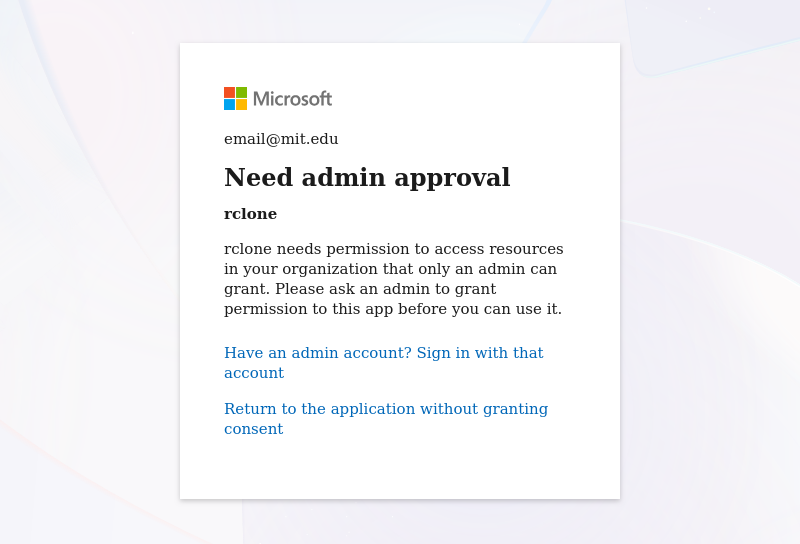
It doesn't show up when using a personal account - the flow completes just fine then. But for accounts managed by an organization, the application needs to be approved by an administrator in Microsoft Entra (formerly Azure Active Directory). I actually reached out to the IT department at DTU via a service ticket, but my request was rejected and I was told that only the OneDrive app and the web-based interface are supported. Well, the first one is not available for Linux, so that's not an option. The second one works but is very limited and not as convenient as Rclone.
I didn't give up and kept looking for workarounds. Soon enough, I found out that OneDrive is basically a personal SharePoint (which I noticed when opening OneDrive in the web browser) and SharePoint can be accessed through WebDAV, which Rclone supports. It even describes the SharePoint-specific configuration. So I tried it but when I ran a command to list my files, I got this error:
Failed to create file system for "sharepoint:": wst:FailedAuthentication: Authentication Failure (AADSTS50076: Due to a configuration change made by your administrator, or because you moved to a new location, you must use multi-factor authentication to access ''.)And that is something that is mentioned in the Rclone documentation:
If you have 2FA enabled, you have to generate an app password.
The problem is I can't generate an app password. I looked all around the settings of my Microsoft 365 account and just couldn't find such an option.
A little frustrated and too busy to deal with it, I took a break from looking
for a solution to this problem. Until now - today, I stumbled upon this post on
Rclone's
forum
(forums FTW!). A user named "ozel" wrote there that they were able to use Rclone
with the WebDAV backend with the vendor = other setting and by providing auth
cookies in the configuration. They even shared a Python script that allows
fetching the cookies automatically from browser files and which describes the
required Rclone configuration:
https://gist.github.com/ozel/bb1cbdd4674445aba1c25289166afda3
Below are instructions to set up Rclone based on ozel's script. All credit and big thanks to them!
The solution
First off, run the configuration tool:
rclone configThen, press n to create a new remote and follow the instructions. Here's how
the process could look like:
Enter name for new remote.
name> onedrive <----- TYPE THE NAME FOR YOUR REMOTE

Option Storage.
Type of storage to configure.
Choose a number from below, or type in your own value.

47 / WebDAV
   \ (webdav)
Storage> webdav <----- TYPE "webdav" AS THE STORAGE TYPE

Option url.
URL of http host to connect to.
E.g. https://example.com.
Enter a value.
url> https://<TENANT>-my.sharepoint.com/my/personal/<USERNAME_DOMAIN_TLD>/Documents <----- THE URL NEEDS TO BE IN THIS FORMAT, IT COULD LOOK LIKE THIS FOR EXAMPLE: https://mitedu-my.sharepoint.com/my/personal/myemail_mit_edu/Documents YOU CAN FIND THE VALUES WHEN YOU OPEN ONEDRIVE IN THE BROWSER AND NAVIGATE TO SOME FOLDER, THEY ARE IN THE URL

Option vendor.
Name of the WebDAV site/service/software you are using.
Choose a number from below, or type in your own value.
Press Enter to leave empty.
 1 / Fastmail Files
   \ (fastmail)
 2 / Nextcloud
   \ (nextcloud)
 3 / Owncloud
   \ (owncloud)
 4 / Sharepoint Online, authenticated by Microsoft account
   \ (sharepoint)
 5 / Sharepoint with NTLM authentication, usually self-hosted or on-premises
   \ (sharepoint-ntlm)
 6 / Other site/service or software
   \ (other)
vendor> other <----- TYPE "other" HERE

Option user.
User name.
In case NTLM authentication is used, the username should be in the format 'Domain\User'.
Enter a value. Press Enter to leave empty.
user> email@mit.edu <----- TYPE YOUR E-MAIL HERE

Option pass.
Password.
Choose an alternative below. Press Enter for the default (n).
y) Yes, type in my own password
g) Generate random password
n) No, leave this optional password blank (default)
y/g/n> y
Enter the password:
password: <----- TYPE YOUR PASSWORD HERE
Confirm the password:
password: <----- TYPE YOUR PASSWORD AGAIN

Option bearer_token.
Bearer token instead of user/pass (e.g. a Macaroon).
Enter a value. Press Enter to leave empty.
bearer_token> <----- DON'T INPUT ANYTHING, PRESS ENTER

Edit advanced config?
y) Yes
n) No (default)
y/n> n <----- TYPE "n" and PRESS ENTER

Configuration complete.
Options:
- type: webdav
- url: https://mitedu-my.sharepoint.com/my/personal/myemail_mit_edu/Documents
- vendor: other
- user: email@mit.edu
- pass: *** ENCRYPTED ***
Keep this "onedrive" remote?
y) Yes this is OK (default)
e) Edit this remote
d) Delete this remote
y/e/d> y  <----- TYPE "y" and PRESS ENTER

Current remotes:

Name                 Type
====                 ====
onedrive             webdav
And that's it for this part. Otherwise, you can also just edit your
rclone.conf file directly and add this remote:
[onedrive]
type = webdav
url = https://<TENANT>-my.sharepoint.com/personal/<USERNAME_DOMAIN_TLD>/Documents
vendor = other
user = <EMAIL ADDRESS>
pass = <PASSWORD>
Where:
- TENANT is the name of the Microsoft tenant of your university, e.g. mitedu
- USERNAME_DOMAIN_TLD is usually your email with @ and . replaced with _, e.g. email_mit_edu
- EMAIL ADDRESS is your email address, e.g. email@mit.edu
- PASSWORD is generated with rclone obscure, i.e.
echo "mypassword" | rclone obscure -
Example config:
[onedrive]
type = webdav
url = https://mitedu-my.sharepoint.com/personal/email_mit_edu/Documents
vendor = other
user = email@mit.edu
pass = J7dsf87fsV94sWER
The next step is to get cookies for OneDrive and add them to the config file.
You can either do it manually by finding rtFa and FedAuth cookies and adding
them to rclone.conf, as a property on your remote, like this:
headers = "Cookie","FedAuth=XXX;rtFa=XXX"Or, if you're using a Firefox- or Chromium-based browser, you can use the Python script below to do it automatically. The script was originally written by ozel, I just removed the davfs2 parts and improved the lookup of the specific remote to configure.
Have a look at the CONFIGURATION section and adjust the values to match your
setup. Also, remember to log in to OneDrive before running the script, so that
the cookies are up to date, and to install the pycookiecheat package to be able
to get the cookies from Chromium-based browsers.
#!/bin/python3

import sqlite3
from pycookiecheat import BrowserType, get_cookies # only required for decrypting chromium cookies, can be commented out if using firefox

# CONFIGURATION

rclone_conf = "/home/XXX/.config/rclone/rclone.conf" # replace with the path to your rclone.conf

remote_name = "onedrive" # replace with the name of your rclone remote for onedrive

#chromium_cookies = "/home/XXX/.config/microsoft-edge/Default/Cookies" #define *either* chromium_cookies or firefox_cookies
firefox_cookies = "/home/XXX/.mozilla/firefox/XXX.default/cookies.sqlite" # replace user folder and XXX.default with your actual Firefox profile folder

tenant = "XXX" # replace with the actual Microsoft tenant name of your university, e.g. "mitedu"

# CONFIGURATION END

if 'firefox_cookies' in globals():
    print("Fetching cookies from Firefox database...")
    uri="file:"+firefox_cookies+"?immutable=1"

    cookies = sqlite3.connect(uri, uri=True) #, check_same_thread=False, isolation_level="IMMEDIATE")

    cursor = cookies.cursor()
    auth = cursor.execute(f"select value from main.moz_cookies \
                        where host = '.sharepoint.com' and name = 'rtFa' \
                        or host = '{tenant}-my.sharepoint.com' and name = 'FedAuth' ;")

    fetched = auth.fetchall()
    rtFa = fetched[0][0]
    FedAuth = fetched[1][0]

elif 'chromium_cookies' in globals():
    print("Fetching cookies from Chromium database...")
    rtFa = get_cookies("https://sharepoint.com", browser=BrowserType.CHROMIUM, cookie_file=chromium_cookies)["rtFa"]
    FedAuth = get_cookies(f"https://{tenant}-my.sharepoint.com", browser=BrowserType.CHROMIUM,cookie_file=chromium_cookies)["FedAuth"]


with open(rclone_conf, "r+") as f:
    lines = f.readlines()

    # Find the remote section
    remote_section_start = -1
    remote_section_end = -1
    headers_line_index = -1

    for i, line in enumerate(lines):
        if line.strip() == f"[{remote_name}]":
            remote_section_start = i
        elif remote_section_start != -1 and line.strip().startswith("["):
            # Found the next section
            remote_section_end = i
            break
        elif remote_section_start != -1 and line.strip().startswith("headers ="):
            headers_line_index = i

    if remote_section_start == -1:
        print(f"ERROR: Remote '[{remote_name}]' not found in {rclone_conf}")
        exit(1)

    # If we didn't find another section, the remote goes to the end
    if remote_section_end == -1:
        remote_section_end = len(lines)

    print(f"Found remote '[{remote_name}]' at line {remote_section_start + 1}")

    new_header = f"headers = \"Cookie\",\"FedAuth={FedAuth};rtFa={rtFa}\"\n"

    if headers_line_index != -1:
        print("Found existing headers line, replacing it:")
        print(f"Old: {lines[headers_line_index].strip()}")
        lines[headers_line_index] = new_header
        print(f"New: {new_header.strip()}")
    else:
        print("No existing headers line found, adding new one to the remote section:")
        # Find the last non-empty line in the section
        insert_position = remote_section_end
        for i in range(remote_section_end - 1, remote_section_start, -1):
            if lines[i].strip():
                insert_position = i + 1
                break
        lines.insert(insert_position, new_header)
        print(f"New: {new_header.strip()}")

    f.seek(0)
    f.writelines(lines)
    f.truncate()
    f.close()

print("Done!")Running the script should automatically set the headers in your rclone.conf
and then you can use all the usual Rclone commands with your OneDrive remote.
It's still a bit annoying that there is this manual process of logging in and
running the script, but it's better than nothing. I guess that part could be
automated as well but I don't use OneDrive often enough to bother.
That's it! I hope you found this article useful and that it saves you and others from wasting time and banging your head against a brick wall :)